1
Email2
Verify3
ResetReset Your Password
No worries! Enter your registered email and we'll send you a secure verification code.
No worries! Enter your registered email and we'll send you a secure verification code.

Need help?



Concerns
We hear your voice. Have complaints or feedback? Let us know so we can improve our services.
Do you want to ask the following?
Step 1: Open the registration page
From the Daet Public Market site, go to the Registration page (or tap Go to registration form below when you are ready). If you already have an account, use Log in instead.
Step 2: Enter your personal details
Fill in your full name, a valid email address, and mobile number. These are used for your account and important updates from the market office.
Step 3: Create a secure password
Choose a password with at least 8 characters, including one uppercase letter, one lowercase letter, and one number. Type it again in the confirm field to match.
Step 4: Accept the terms and submit
Read the Terms & Conditions, check the box to accept them, then submit the form.
Step 5: Sign in and continue
If registration succeeds, sign in with your email and password. You can then apply for a market slot, upload documents, and manage your clearance from your dashboard.
Step 1: Open Google sign-in
From your device, go to the Google Account sign in page.
Step 2: Start creating an account
Click Create account.
Step 3: Choose who the account is for
In the drop-down, select if the account is for your:
Step 4: Finish on Google
To set up your account, follow the steps below.
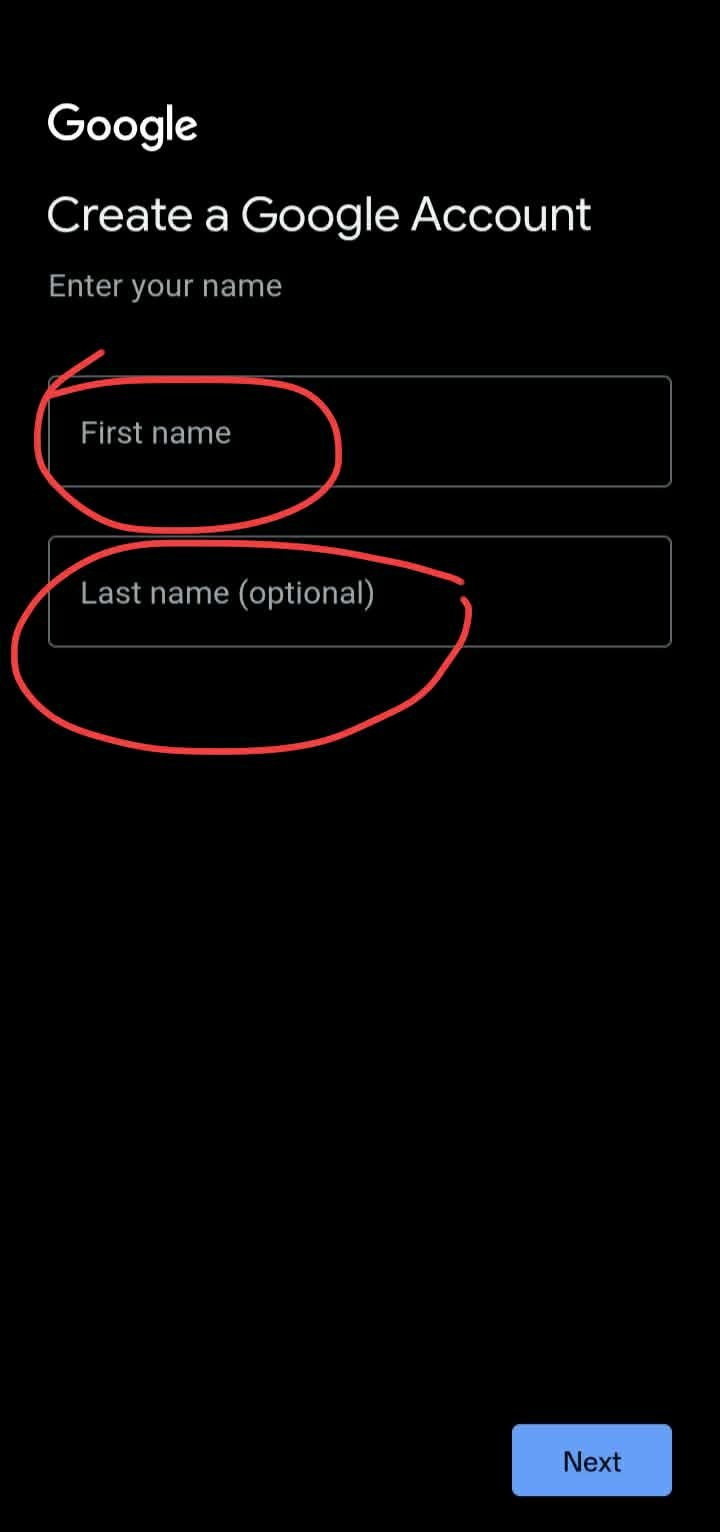
a. fill up you first name and last name
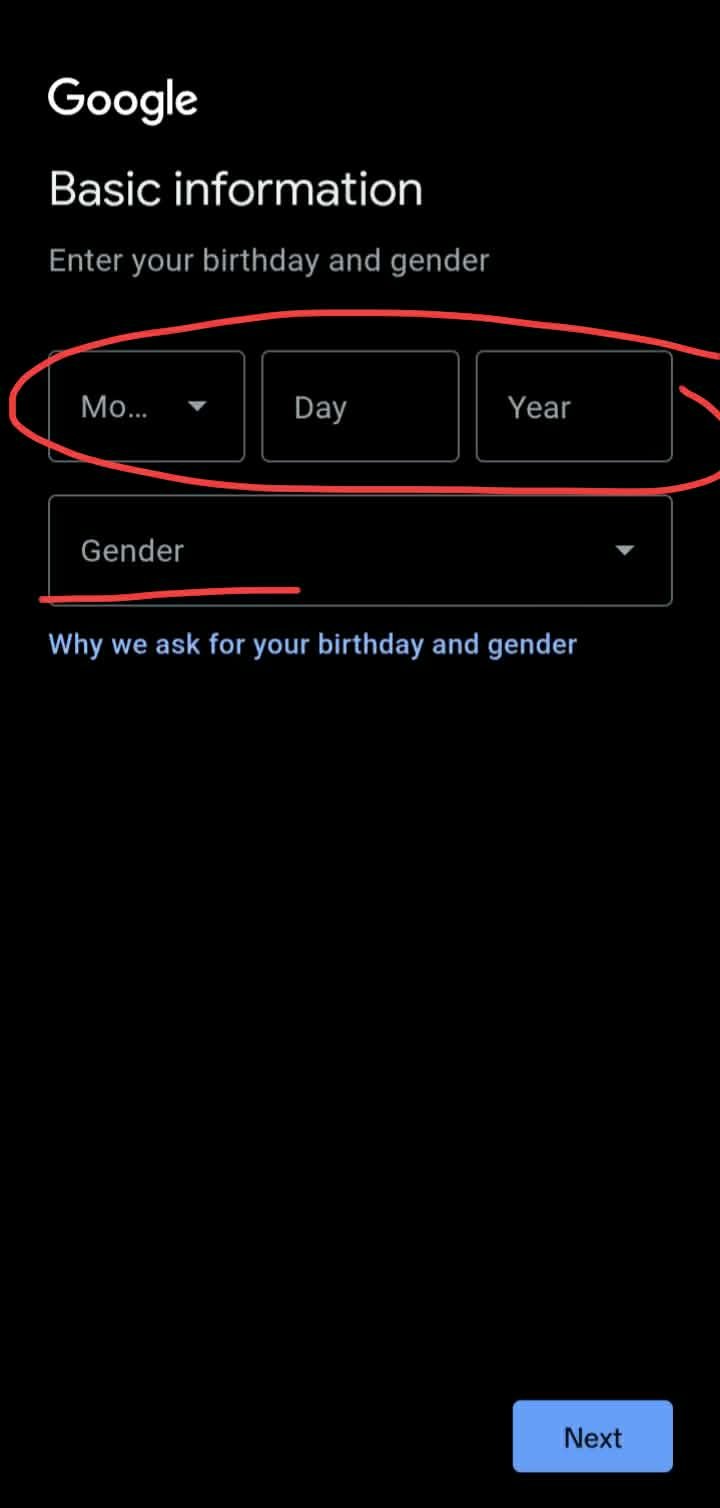
b. enter your date of birth
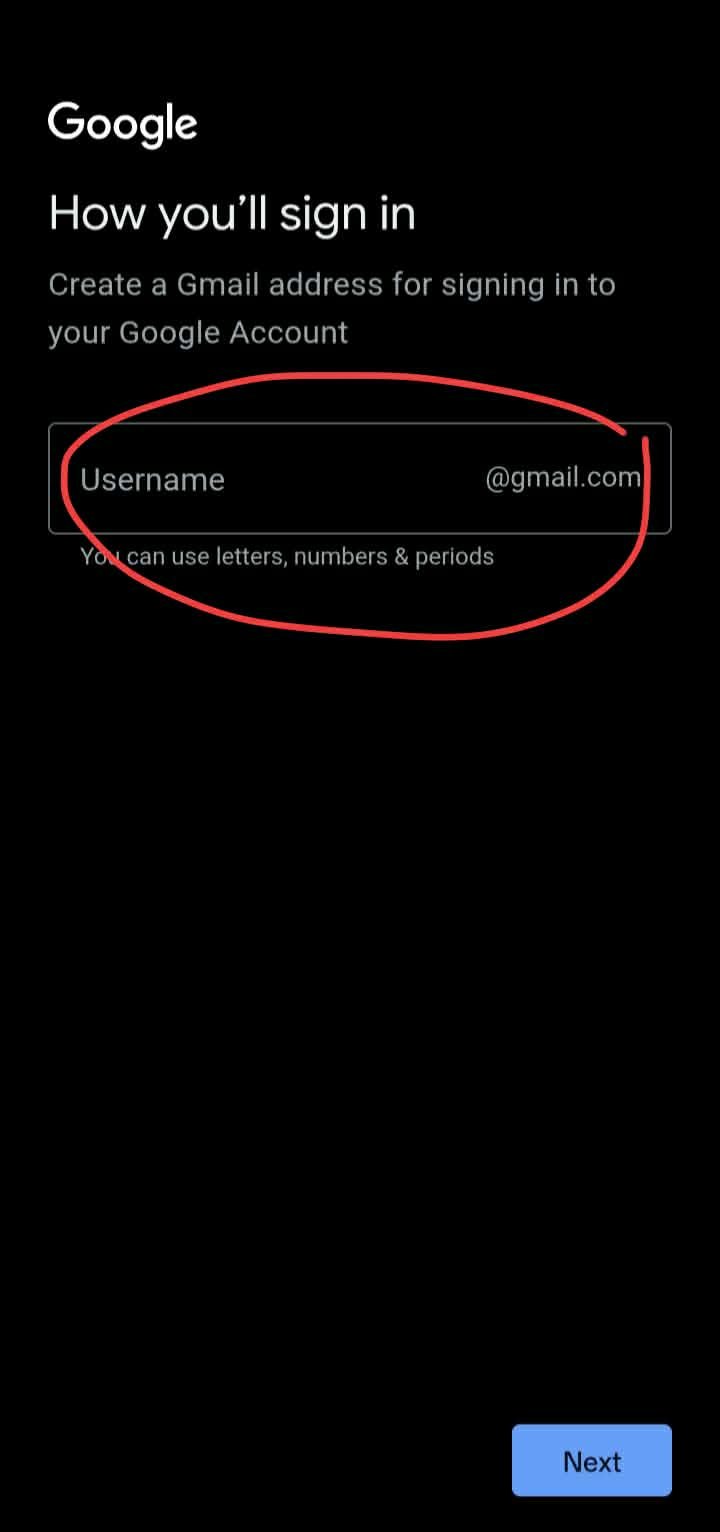
c. type the username you want
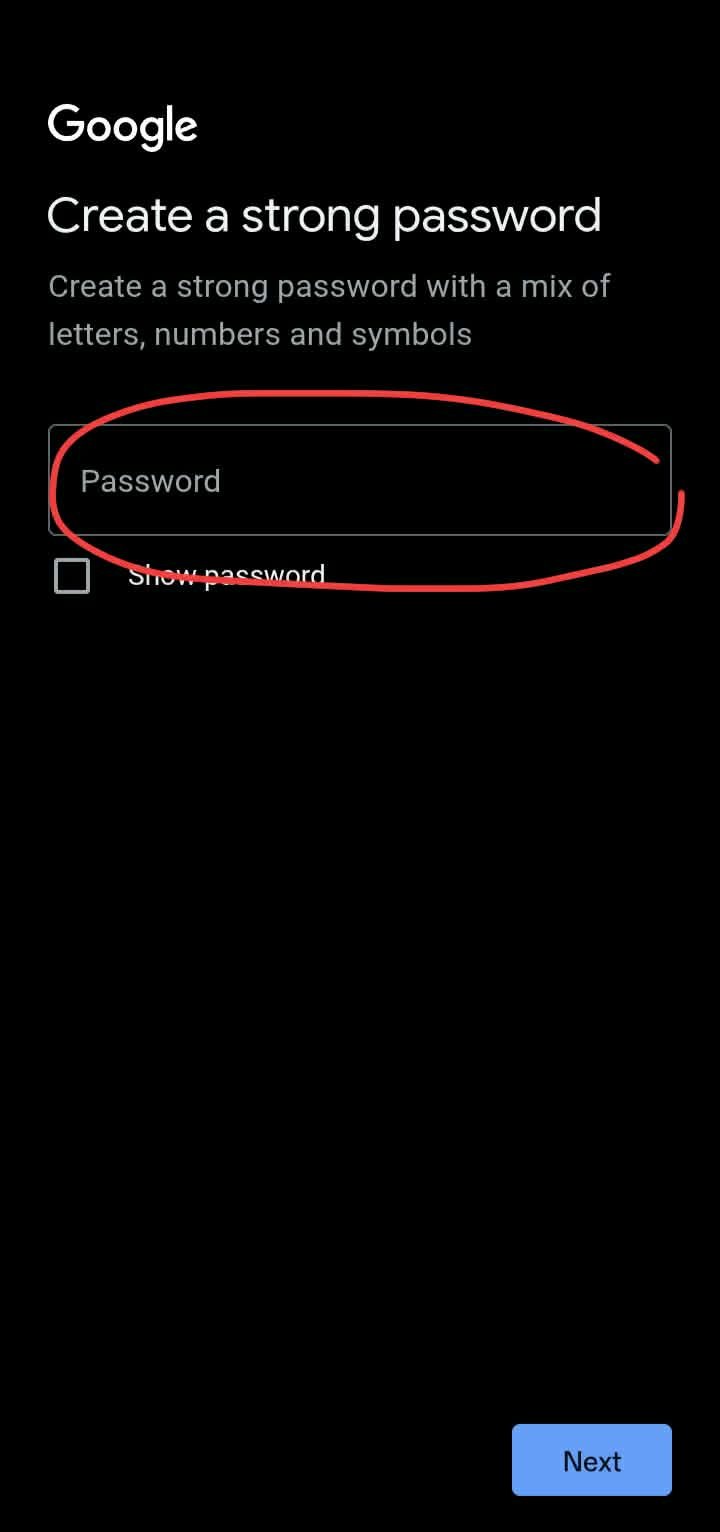
d. enter your desire password
Step 1: Sign in
You must be logged in. If you do not have an account yet, register first, then return here and open Application from the menu.
Step 2: Open the application page
From the site navigation, go to Application (New Application). You will see the clearance application workflow.
Step 3: Choose how many stalls
Select the number of stalls or slots you need (or enter a custom count if that option is shown). The form will create one section per stall.
Step 4: Fill in each stall
For every stall, enter the full name, choose the section and block, and upload the required documents (for example ID, DTI, barangay clearance, and any other files listed on the form). All marked fields must be completed.
Step 5: Submit
Review your entries, then submit. Wait for notifications or check your application status from your profile or dashboard as instructed by the market office.
Step 1: Open the login page
Go to the Log in page on the Daet Public Market site (for example from the home or registration page).
Step 2: Enter your credentials
Type the email address and password you used when you registered. Check for typos and correct capitalization.
Step 3: Sign in
Click the sign-in or log-in button. If you forgot your password, use the forgot password or reset link on the login page, if available.
Step 4: After you are logged in
Use the navigation to open Home, Application, Renewal, Profile, or Notifications depending on what you need.
Step 1: Sign in to your account
Uploading a receipt requires an active session. Open the Log in page, enter the email and password you used when you registered, and sign in. If you are already logged in, you can skip to the next step.
Step 2: Open your Profile
From the top or side navigation on the Daet Public Market site, tap or click Profile. Your profile shows your applications, account tools, and the Send receipt section.
Step 3: Expand “Send receipt”
Scroll until you see the Send receipt card (it works like Edit Profile or Change Password: one row you tap to open). Tap the row or the chevron so the panel opens and the upload form appears.
Step 4: Attach your receipt image
Tap Choose image (or the file area). Your device will ask you to pick a photo or file. Select a clear, readable picture of your official payment receipt.
Step 5: Add notes (optional)
In Notes (optional), you may type a short message for the market office if you wish. This field can be left blank.
Step 6: Submit the receipt
Review that the correct file name appears next to Choose image, then tap Submit receipt. Wait until the page shows a success message; do not close the browser while it is uploading.
Step 7: After you submit
The market office will review your upload. You can track activity from your profile:
Step 1: Sign in
Renewal is for existing vendors. Log in with the account tied to your stall or clearance.
Step 2: Open Renewal
From the menu, go to Renewal. The page loads your renewal form and any section or block information carried from your previous application when the system provides it.
Step 3: Update details and documents
Review and update your information as needed. Upload or replace renewal requirements shown on the page (for example clearances, receipts, or other documents listed by the market office).
Step 4: Submit and follow up
Submit the renewal form. Watch for approval messages or notifications, and contact the market office if you need help with status or missing requirements.